
Download & Play Gacha Life on PC & Mac (Emulator)
Gacha Life was built for mobile, but the creator community has overwhelmingly moved to desktop. If you’re trying to design characters, build Studio Mode scenes, or record Gacha skits, a phone screen simply doesn’t cut it.
3 Ways to Play Gacha Life on PC
Here’s a clean, simple version:
| Method | Best For | Difficulty | Cost | Offline? |
|---|---|---|---|---|
| Android Emulator (BlueStacks, LDPlayer) | Daily play, Studio Mode, and recording | Easy | Free | Yes |
| Cloud Gaming | School Chromebooks and low-end PCs | Very Easy | Free with Ads | No |
| Browser Mods | Quick access without installing software | Medium | Free | Yes |
Note: This is a fan guide. Gacha Life is developed by Lunime. We are not affiliated with Lunime
Method 1: Android Emulator (The Method Most Creators Use)
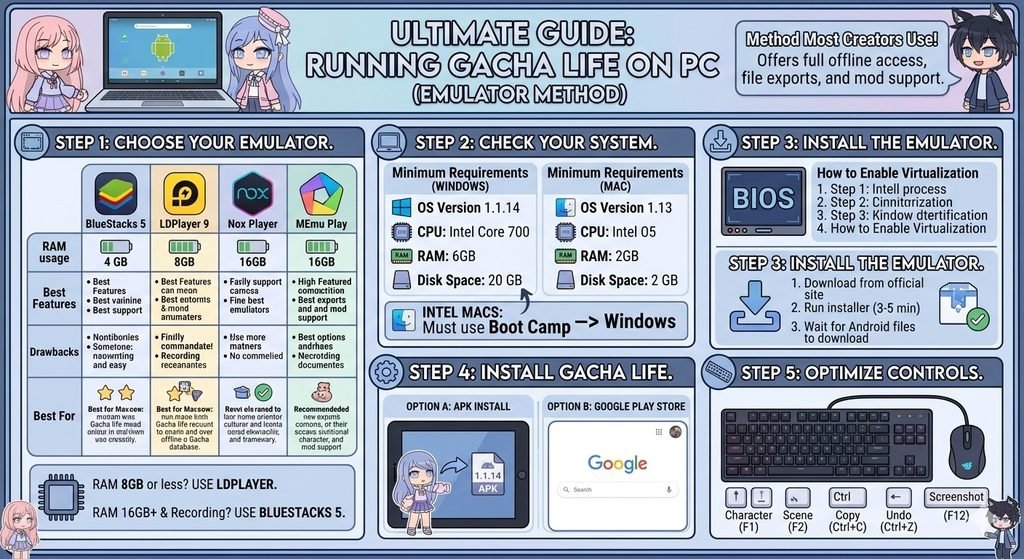
An Android emulator creates a virtual Android tablet on your computer. This is the same route used by the majority of Gacha creators on YouTube and TikTok because it gives you full offline access, file export capabilities, and the ability to run mods.
Step 1: Pick the Right Emulator
Not all emulators handle Gacha Life equally. Here is how the top options compare for this specific game.
| Emulator | RAM Usage | Best Features | Drawback | Best For |
|---|---|---|---|---|
| BlueStacks 5 | ~2–4 GB | Multi-instance, built-in recording | Heavy on older PCs | Content creators |
| LDPlayer 9 | ~1.5–3 GB | Lightweight, game-optimized | Fewer macro tools | Low-end Windows PCs |
| Nox Player | ~2–4 GB | Customizable keymaps | Bundled bloatware | Keyboard-heavy players |
| MEmu Play | ~2–3 GB | Good Intel/AMD compatibility | Slower updates | Niche setup |
If you have 8 GB of RAM or less, use LDPlayer. If you have 16 GB and plan to record with OBS while playing, use BlueStacks 5.
Step 2: Check Your System
Minimum Requirements (Windows)
- Windows 10 or 11 (64-bit)
- Intel Core i3 / AMD Ryzen 3 or newer
- 4 GB RAM (8 GB strongly recommended)
- 5 GB free disk space
- Virtualization enabled in BIOS (Intel VT-x or AMD-V)
Minimum Requirements (Mac)
- macOS 11 (Big Sur) or newer
- Apple Silicon required (M1, M2, M3, M4)
- 8 GB RAM
- 5 GB free disk space
Intel Macs: BlueStacks and LDPlayer have dropped support for Intel-based Macs. If you have an Intel Mac, your best option is installing Windows via Boot Camp and following the Windows steps above, or using the cloud gaming method below.
How to Enable Virtualization
1. Restart your PC and enter BIOS/UEFI (usually by pressing `F2`, `Del`, or `F10` during boot).
2. Look for Intel VT-x, AMD-V, or SVM Mode.
3. Set it to Enabled.
4. Save and exit.
Step 3: Install the Emulator
1. Download your chosen emulator from its official website.
2. Run the installer. First-time setup takes 3–5 minutes and requires an internet connection.
3. On first launch, the emulator will download Android system files. Wait for this to finish.
Step 4: Install Gacha Life
You have two options here:
Option A: APK Install (No Google Account Needed)
1. Download the Gacha Life APK (version 1.1.14, ~108 MB).
2. Drag the APK file directly onto the emulator window.
3. Wait 30 seconds. The icon appears on the home screen.
Option B: Google Play Store
1. Sign in with a Google account inside the emulator.
2. Open the Play Store, search “Gacha Life,” and install normally.
Step 5: Optimize Keyboard Controls
By default, your mouse acts as a virtual finger. That works for Life Mode and mini-games, but Studio Mode is painful without hotkeys.
Recommended Keymap Setup (BlueStacks/LDPlayer):
Add Character – F1
Save Scene – F2
Copy Character – Ctrl + C
Undo – Ctrl + Z
Screenshot – F12
Method 2: Cloud Gaming (Best for Chromebooks & School PCs)
If you cannot install software, school Chromebooks, work laptops, or shared family computers, cloud gaming is your answer.
How It Works
1. Open your browser and navigate to the cloud gaming site.
2. Search for “Gacha Life.”
3. Click Play. The game loads in your browser tab with no download.
you can also enjoy old versions of Gacha Life APK.
Pros and Cons of Gacha Life
Pros
- Works on any device with a browser
- Zero storage used
- No BIOS changes or virtualization needed
- Bypasses most school network restrictions
Cons
- Requires a stable internet connection
- Free tiers include ads or session time limits
- Input lag can make precise Studio Mode placement frustrating
- Cannot easily export scene files or screenshots to your local drive
Method 3: Gacha Life PC Mods & Browser Ports
A lesser-known option: some fan communities have ported Gacha Life to run directly in a browser or as a standalone PC application using Flash/HTML5 wrappers. These are typically modded versions with extra assets.
Gacha Life vs. Gacha Life 2: Which Should You Play on PC?
In 2026, Lunime released Gacha Life 2, and it changes the calculus for PC players.
| Feature | Gacha Life | Gacha Life 2 |
|---|---|---|
| Character Slots | 200 | 300+ |
| Color Customization | Preset palettes | Full color wheel |
| Studio Mode | Static poses | Animation & motion |
| PC Performance | Lighter, smoother on emulators | Heavier; needs more RAM |
| Learning Curve | Beginner-friendly | More complex UI |
| Best For | Quick skits, simple OCs | Detailed animation, advanced creators |
How to Transfer Your Mobile Characters to PC
There is no cloud save or account system in Gacha Life. Your characters are stored in local files. To transfer from Android to PC emulator:
1. On your phone, use a file manager to navigate to:
`Android > data > air.com.lunime.gachalife > files`
2. Copy the `.json` or character data files.
3. Transfer them to your PC via USB, email, or cloud storage.
4. In your emulator, open its Media Manager or Shared Folder feature.
5. Paste the files into the equivalent Gacha Life directory inside the emulator.
To transfer from iPhone to PC:
Apple’s file system makes this significantly harder. iPhone users typically cannot access app data without a jailbreak or iTunes backup extraction. Most iPhone creators rebuild their characters manually on PC or use screenshot references.
Recording Gacha Life on PC: Creator Setup
This is why most creators move to desktop. Recording on PC is objectively superior to mobile screen capture.
Windows Setup
- OBS Studio (free): Full scene control, chroma key, multiple audio tracks.
- Xbox Game Bar (`Win + G`): Built-in, quick captures, no setup.
Mac Setup
- QuickTime Player (Cmd + Shift + 5): Built-in, exports directly to `.mov`.
- OBS Studio: Also available for Mac with Apple Silicon support.
How to Update Gacha Life on PC
Because you sideloaded the APK instead of using the Play Store, updates are manual.
1. Check the version number in your current install (usually shown on the title screen).
2. Visit your download source and compare it to the latest version.
3. Download the new APK.
4. Drag it into your emulator. It will install over the existing version.
5. Your characters and scenes are preserved. You do not need to uninstall first.
Frequently Asked Questions
Conclusion
For the best Gacha Life PC experience in 2026, install LDPlayer (lightweight) or BlueStacks 5 (feature-rich), grab the Gacha Life APK, and spend five minutes setting up keyboard shortcuts for Studio Mode. You’ll get a bigger screen, mouse precision, zero battery drain, and the ability to record professional content.